
Need to rotate screen orientation because your display is sideways, upside down, or locked in portrait mode? Most devices let you change orientation through display settings or a quick-access control. Windows computers may also support keyboard shortcuts, while phones usually rely on automatic rotation settings.
| Device | Fastest method | Main setting |
|---|---|---|
| Windows 11 | Display Settings | Display orientation |
| Windows shortcut | Ctrl + Alt + Arrow, when supported | Graphics hotkeys |
| Chromebook | Ctrl + Shift + Refresh | Display orientation |
| iPhone | Control Center | Portrait Orientation Lock |
| Android | Quick Settings | Auto-rotate |
| Mac | Display settings, when supported | Rotation |
Quick answer: To rotate a screen, open your device’s display or orientation controls and choose landscape or portrait mode. Windows users can use Settings > System > Display. Android and iPhone users should enable automatic rotation. Chromebook users can also press Ctrl + Shift + Refresh to change orientation.
How to Rotate Screen on Windows 11
Windows 11 provides a built-in display setting for changing orientation. This method is more dependable than a keyboard shortcut because graphics hotkeys aren’t available on every PC. It also lets you control individual monitors when you use multiple displays.
- Right-click an empty area of the Windows desktop.
- Select Display settings.
- Find the Scale & Layout section.
- Open the Display orientation menu.
- Choose Landscape, Portrait, Landscape (flipped), or Portrait (flipped).
- Select Keep changes after confirming the new orientation.
Landscape is the standard choice for most desktop and laptop displays. Portrait can work better with vertically mounted monitors, long documents, coding windows, and some social media layouts. The flipped choices reverse the normal direction of either orientation.
If you’re working through another Windows problem, TechPufy’s Windows Wi-Fi troubleshooting guide provides additional system troubleshooting steps. You can also browse the site’s How-to section for other practical technology guides.
Windows Screen Rotation Keyboard Shortcuts
You may see Ctrl + Alt + Arrow described as a Windows screen rotation shortcut. These combinations can work on computers whose graphics software supports and enables them. They aren’t guaranteed to work on every Windows 11 computer.
| Shortcut | Typical result when supported |
|---|---|
| Ctrl + Alt + Up Arrow | Normal landscape |
| Ctrl + Alt + Down Arrow | Upside-down landscape |
| Ctrl + Alt + Left Arrow | Portrait facing left |
| Ctrl + Alt + Right Arrow | Portrait facing right |
Try Ctrl + Alt + Up Arrow first if your display suddenly appears sideways or upside down. If nothing happens, don’t assume your keyboard is faulty. Open Windows Display Settings and change the orientation there instead.
Some graphics utilities let users enable or disable display hotkeys. A manufacturer may also configure its laptops differently from another brand. This explains why the same shortcut can work on one Windows computer but do nothing on another.
How to Rotate a Chromebook Screen
Chromebooks have a dedicated keyboard combination for display rotation. Press Ctrl + Shift + Refresh to change the screen orientation. The Refresh key normally appears on the Chromebook’s top row.
Each use can move the display through another orientation. This is useful when a Chromebook screen was rotated accidentally through the keyboard. Continue until the desktop returns to the position you want.
You can also control orientation through ChromeOS settings. Open Settings and look for the display or orientation options for the built-in display. Convertible Chromebooks may offer automatic rotation when they’re being used as tablets.
How to Rotate an iPhone Screen
An iPhone normally changes between portrait and landscape automatically when the current app supports both orientations. If that isn’t happening, Portrait Orientation Lock may be enabled. You can change it through Control Center.
- Open Control Center on your iPhone.
- Find the button showing a lock surrounded by a circular arrow.
- Tap the button to turn Portrait Orientation Lock off.
- Close Control Center.
- Turn your iPhone sideways.
Not every iPhone app supports landscape orientation. Apple recommends trying another compatible app if the display won’t turn after orientation lock is disabled. This can help determine whether the problem involves the phone or a particular application.
If you want to review other display-related controls, read TechPufy’s lock screen guide. It covers device locking, notifications, privacy controls, and customization across major platforms.
How to Rotate an Android Screen
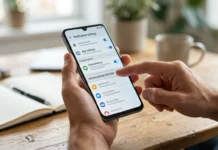
Android phones usually offer an auto-rotate option that changes orientation as you turn the device. You can often find this control by swiping down from the top of the display. Exact labels and menu locations can differ between manufacturers.
- Swipe down from the top of your Android screen.
- Open the full Quick Settings panel if necessary.
- Find Auto-rotate or the current portrait control.
- Turn auto-rotate on.
- Rotate the phone sideways and check the display.
Google also provides an auto-rotate option within Android’s display settings. On supported versions, you can open Settings and find the screen rotation controls under Display or Display & Touch. Samsung, Pixel, Motorola, and other manufacturers may use slightly different menu names.
Some Android apps remain fixed in portrait or landscape mode by design. Test another application before changing more system settings. A video app, browser, or photo application can make a useful test when it supports both orientations.
How to Change Screen Orientation on a Mac
Mac display rotation works differently from Windows and isn’t available for every built-in or connected display. When macOS and your hardware support rotation, you can check the display controls in System Settings. Available choices depend on the Mac, monitor, and current software.
Open System Settings, select Displays, and choose the relevant display. Look for a Rotation setting and select the orientation you need when that control appears. If no rotation option appears, macOS may not expose software rotation for that particular display configuration.
Physical monitor position matters as well. Don’t rotate a desktop monitor into portrait position unless its stand or mount supports that movement safely. After physically turning a supported monitor, match its software orientation to its new position.
Why Won’t My Screen Rotate?
A screen that refuses to turn doesn’t always indicate a hardware problem. Rotation can be blocked by an orientation lock, unsupported app, graphics setting, or unavailable keyboard shortcut. Checking those possibilities in order usually saves time.
First, confirm that rotation isn’t locked on a phone or tablet. On Windows, use Display Settings rather than depending on Ctrl + Alt + Arrow. On an iPhone or Android phone, test a second app because the first app may support only one orientation.
Check these common causes if the problem continues:
- Orientation or rotation lock is enabled.
- The current app doesn’t support landscape mode.
- A Windows graphics hotkey is disabled or unsupported.
- The wrong monitor is selected in a multi-monitor setup.
- A convertible laptop isn’t detecting tablet positioning correctly.
- Display or graphics software needs attention after a system change.
Restarting the device is a reasonable next step when the settings appear correct. Windows users experiencing wider display problems can also check graphics updates from Windows Update or their computer manufacturer. Avoid installing unknown driver tools simply to fix an orientation setting.
Portrait vs. Landscape: Which Should You Use?
Landscape orientation is wider than it is tall. It’s usually the natural choice for videos, spreadsheets, games, presentations, and side-by-side application windows. Most laptop screens and desktop monitors also use landscape by default.
Portrait orientation is taller than it is wide. It can be useful for reading long documents, viewing code, monitoring chats, or working with vertically structured content. A pivot-capable secondary monitor can make portrait orientation especially practical.
The correct choice depends on what you’re viewing rather than one universal setting. Switching between the two doesn’t normally change the underlying content. It changes how the operating system maps that content to the physical display.
What to Do When Your Screen Is Sideways or Upside Down
An unexpectedly rotated computer display can make even basic navigation difficult. On Windows, open Display Settings and select Landscape to restore the usual orientation. If your computer supports graphics hotkeys, Ctrl + Alt + Up Arrow may provide a faster recovery.
Chromebook users can press Ctrl + Shift + Refresh until the screen returns to its intended position. Phone users should check orientation controls rather than repeatedly turning the device. A locked orientation won’t change until its lock setting is disabled.
After fixing the problem, consider whether the rotation happened through a shortcut or system setting. Knowing the cause makes the next accidental change easier to reverse. TechPufy’s technology section also contains related device and display guides.
Frequently Asked Questions
What is the shortcut to rotate screen orientation on Windows?
Ctrl + Alt + Arrow can change orientation on Windows computers that support graphics hotkeys. The Up Arrow commonly returns the display to normal landscape mode. Use Windows Display Settings if the shortcut doesn’t work.
How do I get my screen back to normal?
Windows users should choose Landscape under Settings > System > Display > Display orientation. Chromebook users can use Ctrl + Shift + Refresh until the correct position appears. Phone users should unlock automatic rotation and turn the device to the desired position.
Why doesn’t Ctrl + Alt + Arrow rotate my screen?
The shortcut depends on graphics software and isn’t available on every Windows computer. It may also be disabled by the computer manufacturer or graphics configuration. Windows Display Settings remain the more dependable method.
Why won’t my phone rotate sideways?
First check Auto-rotate on Android or Portrait Orientation Lock on iPhone. Then test an application known to support landscape viewing. Some apps intentionally remain in one orientation even when automatic rotation is enabled.
Can I rotate only one monitor?
Windows lets you select a particular display before changing its orientation. This makes a portrait secondary monitor possible while your main display remains landscape. Make sure the physical stand supports the position before turning the monitor.
Set the Orientation That Fits Your Device
Changing orientation should take only a few moments once you know which control your device uses. Windows provides dedicated display settings, Chromebooks have a rotation shortcut, and phones use automatic orientation controls. The safest troubleshooting approach is to start with the operating system’s built-in settings.
If the problem returns, check whether a rotation lock or graphics shortcut caused the change. You can then correct it without changing unrelated settings or installing extra software. Visit TechPufy’s How-to guides for more straightforward fixes for everyday technology problems.