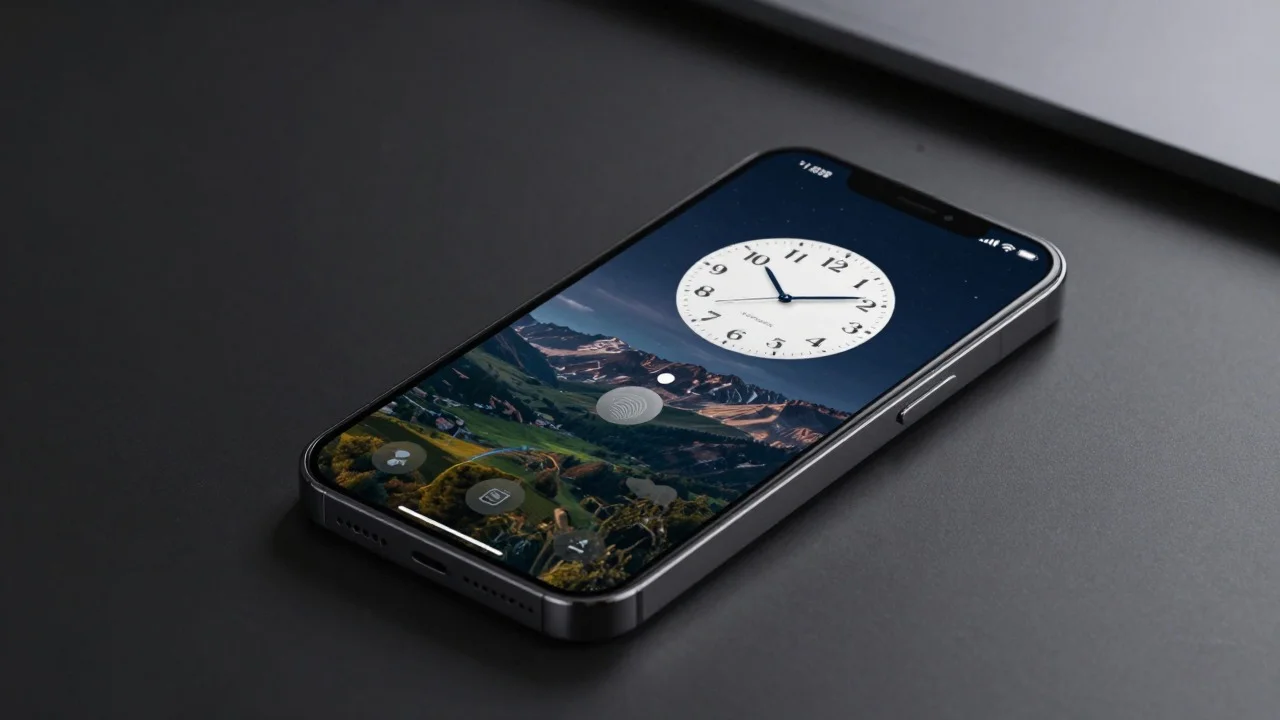
A lock screen is the secured display you see before accessing a phone, tablet, or computer. It helps prevent unauthorized access while still showing selected information and controls. Modern devices combine this barrier with PINs, passwords, biometrics, notifications, widgets, and useful shortcuts.
A locked display creates a security boundary between your device and anyone who picks it up. You authenticate before reaching private apps, files, messages, and settings. At the same time, selected information can remain available without giving someone full access.
| Feature | What it does | Main consideration |
|---|---|---|
| Lock screen | Limits access before authentication | Use a secure PIN, password, or biometric method |
| Authentication | Confirms that you are the device owner | Strong credentials reduce unauthorized access |
| Notifications | Shows alerts while the device remains secured | Message previews can expose private information |
| Shortcuts | Opens selected tools without full access | Keep sensitive functions restricted |
| Personalization | Changes wallpapers, clocks, and widgets | Avoid displaying private personal details |
| Always-on display | Shows limited information while idle | Review what remains visible in public |
Key takeaways
| Question | Short answer |
|---|---|
| Does it protect your device? | Yes, when secure authentication is enabled. |
| Can notifications reveal information? | Yes, depending on your privacy settings. |
| Can you customize it? | Yes, with options varying by platform and device. |
| Is it the same as a screensaver? | No. A screensaver and a secured device state serve different purposes. |
| Should you use biometrics? | Biometrics are convenient, but devices still rely on a PIN or password fallback. |
What a Lock Screen Does and Why It Matters
The main purpose is controlling access when a device is unattended, sleeping, or newly started. Authentication separates the visible display from private apps, files, and account information. This protection becomes especially useful when a phone or laptop is lost or left unattended.
The feature also prevents accidental actions while a device sits inside a pocket or bag. Depending on your settings, limited controls can remain available before authentication. Those controls may include a camera, media player, emergency functions, widgets, or basic status details.
Device security does not depend on this feature alone. Updated software, careful notification settings, secure credentials, and account protections remain important. TechPufy readers can find related safety topics in TechPufy’s Security section.
How Device Locking Works
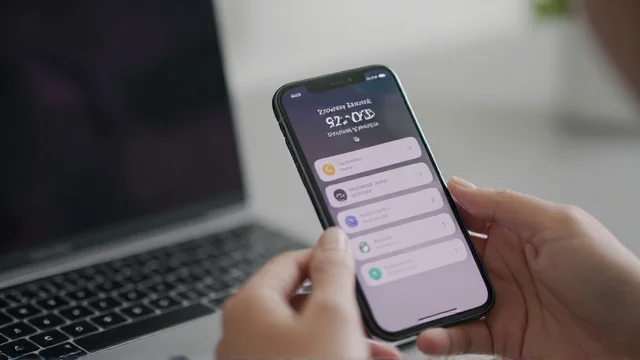
A phone or computer usually enters a secured state after inactivity or a manual locking action. The operating system then asks for approved authentication before normal access resumes. Common methods include PINs, passwords, patterns, fingerprints, and facial recognition.
Android supports PINs, patterns, and passwords for securing access to a device. Google recommends using six or more digits when choosing a PIN for stronger protection. Settings can vary between manufacturers, so menu names may differ across Android phones.
Windows 11 can require a PIN, password, or supported biometric sign-in method before desktop access. Microsoft also lets users choose backgrounds and display selected widgets before signing in. These settings are available through the Personalization area in Windows Settings.
Authentication and display personalization are related, but they are not the same setting. Changing a wallpaper does not change your password or biometric credentials. Likewise, stronger authentication does not automatically hide sensitive message previews.
What You Can Access Before Unlocking
Modern phones can provide useful information without opening the full operating system. Apple allows access to features such as Camera, notifications, media controls, widgets, and Control Center. Users can also choose which features remain available while the iPhone is secured.
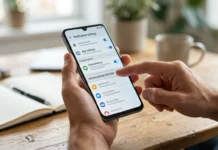
Android phones can provide notifications, emergency calling, quick settings, media controls, and selected shortcuts. Exact options depend on the phone manufacturer and Android version. Pixel devices also offer customizable clocks and shortcuts on supported Android versions.
Windows follows a similar idea with time, background imagery, sign-in access, and optional informational widgets. Microsoft currently provides picture, slideshow, and Windows Spotlight background options. Users can also disable widgets when they prefer a cleaner display.
Convenience should not override privacy. A feature that works without authentication deserves a quick review before you leave it enabled. This matters most for phones used around coworkers, customers, classmates, or other people.
Notification Privacy Is the Setting Many Users Miss
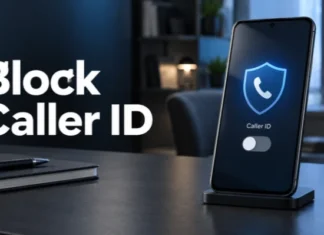
Notifications can expose information even when nobody can open your device. A visible message might reveal a sender, verification code, appointment, email subject, or private conversation. NIST specifically identifies information disclosure through locked-device notifications as a mobile security risk.
Google provides controls for showing notifications while hiding sensitive content on supported Android devices. Users can also disable locked-display notifications completely or adjust individual applications. The exact path varies because manufacturers can change Android menus.
Apple also lets iPhone owners control notification previews and their appearance before authentication. That gives users a choice between convenience and reduced exposure. Sensitive apps deserve stricter settings than weather, sports, or other low-risk alerts.
The FBI has also recommended hiding message previews for sensitive communications in its cybersecurity guidance. That advice reflects a simple risk: physical access can still expose information without full device access. For more privacy-focused technology coverage, browse TechPufy’s Gadgets and Apps section.
Safe Customization on iPhone, Android, and Windows
Personalization can make a secured device more useful without reducing protection. The safest approach is changing appearance while reviewing every feature available before authentication. The table below summarizes practical options across major platforms.
| Platform | Common customization options | Privacy setting worth checking |
|---|---|---|
| iPhone | Wallpaper, clock appearance, widgets, multiple designs, Focus links | Notification previews and features available while secured |
| Android | Wallpaper, clock, shortcuts, notifications, personal message | Sensitive notification content and available shortcuts |
| Windows 11 | Picture, slideshow, Windows Spotlight, widgets | Sign-in requirements and information shown before login |
On iPhone, Apple supports custom wallpapers, clock styling, widgets, and multiple saved designs. A design can also be associated with a Focus mode. Available options can change with iOS updates and device capabilities.
Current Pixel software provides controls for clocks, shortcuts, notifications, and other displayed information. Shortcut options can include Camera, Wallet, Flashlight, Home controls, and Do Not Disturb. Other Android brands may organize these choices differently.
Windows users can open Settings > Personalization > Lock screen to control supported background and widget options. Microsoft currently supports Windows Spotlight, individual pictures, and slideshows on Windows 11. Reviewing widgets is useful when you want less information displayed before sign-in.
Choosing a Secure Unlock Method
| Method | Convenience | Security consideration |
|---|---|---|
| Swipe only | High | Provides little or no meaningful access protection |
| PIN | High | Use a longer PIN and avoid obvious number patterns |
| Pattern | High | Avoid simple shapes that another person can observe |
| Password | Moderate | Longer, unique passwords can provide strong protection |
| Fingerprint | High | Convenient biometric option with credential fallback |
| Face recognition | High | Protection depends on the device’s biometric implementation |
A secure PIN or password remains important even when you normally use biometrics. Phones generally require the underlying credential after certain restarts, security events, or setting changes. Never choose an obvious code based on birthdays, repeated digits, or simple sequences.
Biometrics make frequent unlocking faster because you do not type credentials every time. They do not remove the need for a secure fallback credential. Your device settings should combine convenience with protection appropriate for the information you store.
Locked Display vs. Screensaver, Wallpaper, and Sleep
These terms describe different features, although their settings sometimes appear near each other. Wallpaper changes the background behind an active home screen or desktop. A screensaver shows visual content after inactivity, while device locking controls authenticated access.
Sleep is also different because it concerns power state rather than appearance or authentication. A computer can be locked while programs continue running in the background. Power settings determine whether it later sleeps, hibernates, or turns off.
Understanding these differences helps when troubleshooting an unwanted picture, timeout, or sign-in prompt. Changing the wrong setting often produces no visible improvement. TechPufy’s How-to section is another useful destination for practical technology guides.
A 60-Second Privacy Audit
You can improve device privacy without changing every setting. Focus first on information available before authentication. This short audit works as a practical starting point.
- Confirm that a PIN, password, fingerprint, or secure facial authentication method protects the device.
- Hide sensitive notification previews, especially for banking, messaging, email, authentication, and workplace applications.
- Review shortcuts and assistants that work before authentication, then disable anything you do not need.
- Check the automatic locking delay and shorten it if your device stays accessible after you stop using it.
- Install operating system updates promptly, because security fixes can address vulnerabilities affecting protected devices.
This audit is especially useful before travel, office work, school, or any situation involving shared spaces. It reduces casual information exposure without making the device frustrating to use. Recheck the settings after major operating system updates because options can change.
Frequently Asked Questions
What is a lock screen?
It is the secured interface shown before normal access to a phone, tablet, or computer. It can require authentication while still displaying selected status information or controls. Its main purpose is limiting unauthorized access to the device.
Can I turn off device locking?
Some devices let you reduce or disable authentication requirements, although available choices vary. Doing so can make private information easier to access after loss or theft. Keeping a secure credential enabled is the safer choice for devices containing personal information.
Does locking a computer stop running programs?
Usually, locking Windows does not automatically close the programs already running. Sleep and power settings control whether the computer later enters a lower-power state. Those settings should be reviewed separately when background tasks must continue.
Why can I still see notifications when my phone is secured?
Notification visibility is controlled separately from the authentication requirement. Android and iPhone both provide options for changing previews and displayed content. Hiding sensitive previews keeps alerts useful while reducing information visible to nearby people.
Is a screensaver the same as a secured device display?
No, the two features have different purposes. A screensaver displays visual content during inactivity, while device locking controls access through authentication. Power settings can also operate independently from both features.
Make Your Secured Display Useful Without Oversharing
A good setup should protect private information without making everyday device use inconvenient. Use strong authentication, limit sensitive previews, and keep only useful shortcuts available before sign-in. Review those choices whenever a software update introduces new widgets, assistants, or notification features.
Security also works best as a collection of small habits rather than one setting. Keep your operating system updated and protect important accounts with appropriate security features. A few minutes of configuration can prevent casual access and reduce unwanted information exposure.