
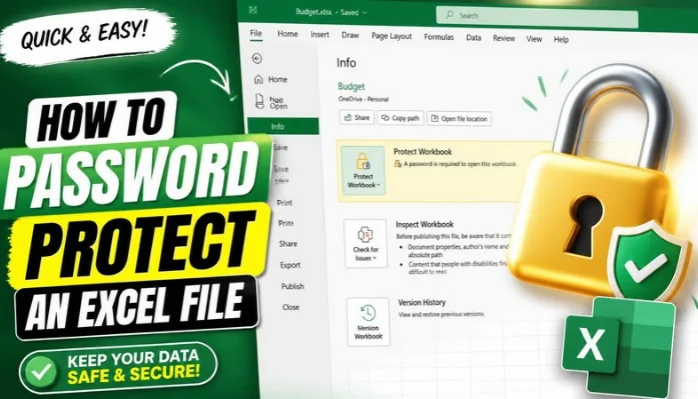
How to Password Protect an Excel File can help prevent unauthorized people from opening an Excel workbook. The process takes only a few minutes in the desktop application. You can also protect individual sheets when you only want to prevent unwanted changes.
To password-protect an Excel file, open the workbook and select File > Info > Protect Workbook > Encrypt with Password. Enter your password, select OK, and enter it again to confirm. Save the workbook so Excel keeps the new protection.
| Protection option | What it protects | Best use |
| Encrypt with Password | Prevents people from opening the file | Confidential or private spreadsheets |
| Protect Workbook | Prevents structural workbook changes | Prevents sheets from being added, removed, or renamed |
| Protect Sheet | Limits changes to cells and sheet content | Protecting formulas or locked cells |
| Read-only access | Discourages or restricts editing | Files meant mainly for viewing |
What You’ll Need Before You Start

To How to Password Protect an Excel File, you need the Excel file and access to the Microsoft Excel desktop application. Save any unfinished changes before changing the file’s security settings. Also decide where you’ll securely store your password.
File encryption differs from worksheet and workbook protection. Encryption prevents someone from opening the file without the correct password. Worksheet protection primarily controls which cells or features someone can modify.
Microsoft also warns that Microsoft cannot retrieve forgotten file passwords. Choose a strong password you can store safely. Avoid relying on a password that you might forget later.
How to Password Protect an Excel File in 5 Steps
The standard desktop method encrypts the workbook and requires a password to open it. These instructions apply to current desktop versions of Excel, including Microsoft 365 and recent standalone editions. Menu wording can vary slightly between versions.
- Open the Excel workbook. Launch Microsoft Excel and open the file you want to secure.
- Open the File menu. Select File in the upper-left corner, then choose Info.
- Choose Encrypt with Password. Select Protect Workbook, followed by Encrypt with Password.
- Create and confirm your password. Type your chosen password, select OK, then enter the same password again.
- Save the workbook. Save your file after applying encryption so the protection remains active.
Close the workbook after saving it and open it again. Excel should display a password prompt before showing the workbook’s contents. This quick test confirms that the protection was saved correctly.
Microsoft says passwords are case-sensitive. Entering different capitalization can therefore prevent the workbook from opening. Store the exact password securely rather than depending on memory alone.
File Encryption vs. Workbook and Worksheet Protection
Excel offers several protection options, and their similar names can cause confusion. Choosing the wrong option may leave your information visible when you expected it to be private. The correct choice depends on what you want to prevent. Either way, a password is only one layer of cybersecurity for individuals and businesses.
File encryption is appropriate when other people shouldn’t open or view the workbook. The password is requested before access to the file’s contents is granted. This option is useful for spreadsheets containing confidential business or personal information.
Workbook protection serves a different purpose. It can stop users from changing the workbook’s structure, including adding, deleting, moving, hiding, or renaming sheets. It doesn’t provide the same access control as encrypting the entire file.
Worksheet protection controls changes within an individual sheet. You can use it to protect formulas, locked cells, or specific sections from editing. Microsoft states that worksheet protection isn’t intended as a security feature.
How to Protect an Excel Worksheet From Editing
Sometimes you want colleagues to open a spreadsheet but not change certain information. Worksheet protection is designed for this situation. You can choose which cells remain editable before enabling protection.
First, select any cells that users should be allowed to change. Open Format Cells, choose Protection, and clear the Locked setting for those cells. You can then enable protection for the sheet.
Go to Review > Protect Sheet and choose the actions users may perform. Enter a password if you want to prevent others from removing the protection. Confirm the password when Excel asks you to enter it again.
This approach works well for templates and spreadsheets containing formulas. Users can enter information into approved areas without changing protected sections. Remember that this feature controls editing rather than securing confidential data.
How to Protect the Workbook Structure
Workbook protection is useful when the sheets themselves must remain organized. It prevents unwanted structural changes without blocking access to the workbook. For example, you can prevent someone from deleting or renaming important sheets.
Open the workbook and select Review > Protect Workbook. Enter a password when prompted, then confirm it. Save the workbook after applying the setting.
This feature should not be confused with file encryption. A person may still be able to open and read the workbook. Use file-level encryption when preventing unauthorized viewing is your main goal.
Can You Add an Excel File Password in Excel for the Web?
Excel for the web has different password capabilities from the desktop application. Microsoft says the web version can open and edit certain password-protected workbooks. It cannot add, change, remove, or recover workbook file passwords.
Open the workbook in the desktop version of Excel when you need file-level password encryption. You can use the Open in Excel option when it is available. Then follow the File, Info, Protect Workbook, and Encrypt with Password process.
This distinction can explain why an expected security option appears unavailable online. Moving to the desktop application may provide the required controls. Make sure you save your changes after adding the password.
How to Remove a Password From an Excel File
You can remove encryption when a workbook no longer needs restricted access. You must know the current password before you can open the encrypted file. Removing the password doesn’t require creating a replacement.
Open the workbook and enter its existing password. Go to File > Info > Protect Workbook > Encrypt with Password. Delete the password from the box, select OK, and save the workbook.
Close and reopen the file to verify the change. The workbook should open without requesting the old password. If it still asks for one, confirm that you saved the file after removing encryption.
What Happens If You Forget the Excel Password?
A forgotten password can create a serious access problem. Microsoft states that it cannot retrieve forgotten passwords for encrypted Excel files. There isn’t a standard password-reset process like the one used for an online account.
Keep important workbook passwords in a reputable password manager or another secure location. Don’t store the password inside the same spreadsheet it protects. A secure record is especially important for business files that other employees may need later.
Consider your organization’s recovery and retention policies before encrypting critical business files. A password known to only one employee can create problems after a role change. Companies may need an approved credential-management process for shared documents.
Tips for Choosing a Strong Excel Password
A good password should be difficult for another person to guess. Avoid names, birthdays, company names, or common keyboard patterns. Reusing a password from another account also creates unnecessary risk.
A longer passphrase can be easier to remember while remaining difficult to guess. Use a unique password for important spreadsheets. A password manager can generate and store stronger credentials for you.
Never send the workbook and its password together through the same unprotected message when avoidable. Separate communication channels can reduce accidental exposure. Follow your employer’s security requirements when handling business or customer information.
Common Problems When Password Protection Doesn’t Work
A missing Encrypt with Password option can indicate that you’re using Excel in a browser. Open the workbook in the desktop application and check again. Microsoft documents different password capabilities between desktop Excel and Excel for the web.
You should also verify that you saved the workbook after setting the password. Closing an unsaved file can discard the security change. Reopen the saved file to confirm that Excel requests the password.
Don’t confuse Protect Sheet with encryption when testing your file. A protected sheet may still open normally because its password controls editing. File encryption is the option that requires credentials before viewing the workbook.
Is Password Protection Enough for Sensitive Excel Data?
Password protection provides useful access control, but it shouldn’t replace broader security practices. Microsoft cautions against assuming a protected workbook is automatically safe for highly sensitive information. Sharing methods and password handling still matter.
Keep sensitive files on trusted devices and approved storage services. Limit who receives both the workbook and its credentials. Business users should also follow company policies for financial, employee, customer, or regulated information.
Think of encryption as one part of your security process. Strong account security, controlled sharing, backups, and a secure device lock screen remain important. These measures can protect information beyond the workbook itself.
Keep Your Excel Files Protected
Adding a password is quick, but choosing the correct protection type matters. Use file encryption when you need to restrict access to the entire workbook. Use sheet or workbook protection when your main concern is preventing unwanted changes.
Test the file after changing its security settings and keep the password somewhere safe. Remember that Microsoft cannot retrieve a forgotten encryption password. Combining Excel protection with careful sharing gives your spreadsheet stronger practical security.
Frequently Asked Questions
How do I password protect an Excel file so nobody can open it?
Use File > Info > Protect Workbook > Encrypt with Password in desktop Excel. Enter and confirm a password, then save the workbook. Excel will request that password the next time the encrypted file is opened.
Can I password protect an Excel file in Microsoft 365?
Yes, the desktop version of Excel included with Microsoft 365 supports file-level password encryption. Use the Encrypt with Password option under Protect Workbook. Browser-based Excel has different limitations for adding or changing file passwords.
Can I set a password for only one Excel sheet?
Yes, you can protect an individual worksheet through the Review tab. Select Protect Sheet, choose permitted actions, and add a password if needed. This limits editing but isn’t equivalent to encrypting the whole file.
Can Microsoft recover my forgotten Excel password?
Microsoft says it cannot retrieve a forgotten password for an encrypted workbook. Store the password somewhere secure before relying on file encryption. Losing the password could mean losing access to the workbook’s information.
Why can’t I find Encrypt with Password in Excel Online?
Excel for the web doesn’t support adding, changing, removing, or recovering file passwords. Open the workbook using the desktop Excel application instead. You can then apply encryption through the Protect Workbook menu.
Does Protect Workbook stop people from opening my Excel file?
Not when you’re using workbook structure protection. That setting mainly restricts structural changes, such as deleting or renaming worksheets. Choose Encrypt with Password when you want a password required before opening the file.