


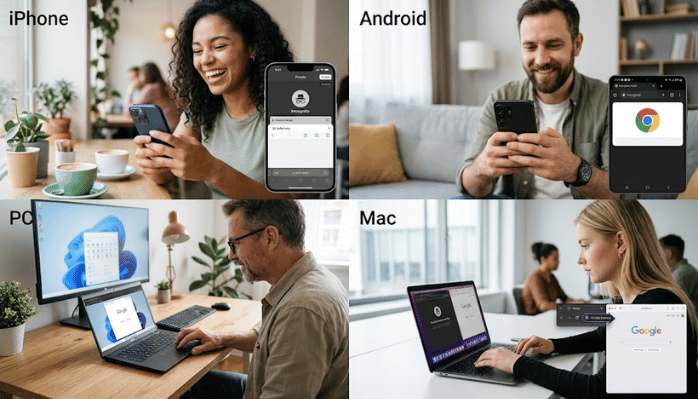
If you’re wondering how to get out of private browsing, the fix usually takes only a few taps. You either switch back to regular tabs or close every private window. The exact steps depend on your browser and device.
Popular browsers use different names for private browsing. Chrome calls it Incognito, while Microsoft Edge uses InPrivate. Safari and Firefox simply call it Private Browsing.
Quick answer: To leave private browsing, open your browser’s tab switcher and select your regular tabs. Chrome users can close every Incognito tab instead. Desktop users can usually exit by closing all private or Incognito windows and opening a normal browser window.
Quick Steps for Leaving Private Browsing
| Browser | Private Mode Name | Fastest Way to Exit |
|---|---|---|
| Safari on iPhone | Private Browsing | Open Tabs and switch to a regular Tab Group |
| Chrome on iPhone | Incognito | Close all Incognito tabs |
| Chrome on Android | Incognito | Close all Incognito tabs |
| Safari on Mac | Private Browsing | Close the private window and open a normal window |
| Chrome on Windows or Mac | Incognito | Close every Incognito window |
| Microsoft Edge | InPrivate | Close InPrivate windows or switch to regular tabs |
| Firefox | Private Browsing | Switch to regular tabs or close private windows |
The main difference involves Safari on iPhone. Safari lets you move between Private and regular Tab Groups without closing private pages. Apple confirms that private tabs can remain open after you return to a regular group.
How to Get Out of Private Browsing on iPhone Safari
Safari treats Private Browsing as a separate group of tabs. You can therefore leave it without deleting the pages you opened. Current iPhones let you switch directly to a regular Tab Group.
1. Open Safari on your iPhone. 2. Tap the Tabs button to display your open tabs. 3. Find the tab-group controls near the bottom of the screen. 4. Swipe from Private toward your regular Tab Group when needed. 5. Select your regular group, such as 3 Tabs, Start Page, or another named group. 6. Open a regular tab and continue browsing normally.
Your Safari interface should return to its normal appearance. Apple notes that Private Browsing locks when you leave it on supported configurations. Your existing private pages can remain available inside the Private group.
What if Safari has a More button?
Safari controls can differ between iOS versions and tab layouts. Current Apple guidance may show a More button for creating normal or private tabs. Older versions commonly use the traditional Tabs button and Tab Groups.
The goal stays the same despite those interface differences. Select a normal tab or normal Tab Group instead of Private. You don’t need to erase your browsing history to make that switch.
How to Exit Incognito Mode in Chrome on iPhone
Chrome handles private browsing differently from Safari. An Incognito session continues while at least one Incognito tab remains open. Google says you must close all Incognito tabs to fully end that session.
1. Open Google Chrome. 2. Tap the Switch Tabs button. 3. Select the Incognito section. 4. Tap Edit. 5. Choose Close All Tabs. 6. Return to the regular Chrome tabs.
Closing one Incognito page may not end the session. Other private tabs can keep Incognito active. Closing them all returns Chrome to regular browsing.
Chrome can also lock or hide Incognito tabs on an iPhone. You might need Face ID, Touch ID, or your passcode to access them. That security setting does not prevent you from using regular tabs.
How to Exit Incognito Mode on Android
Chrome for Android works similarly. Google says the Incognito session ends after you close every Incognito tab. You can close them individually or use the option to close all private tabs.
1. Open Chrome on your Android phone. 2. Tap Switch Tabs near the address bar. 3. Open the Incognito tabs section. 4. Close each Incognito tab individually. 5. Alternatively, open the menu and select Close all Incognito tabs. 6. Select or create a normal Chrome tab.
Some Android versions also display an Incognito indicator or chip. Selecting it can give you another way to access your private tabs. The exact icon placement can vary between Chrome versions.
How to Leave Private Browsing on Firefox
Firefox lets mobile users switch between regular and private tabs. On iPhones, tap the tab counter and select Tabs instead of Private. Mozilla confirms this is the standard way to return to normal browsing.
Firefox for iOS may close private tabs automatically when you leave private mode. That behavior depends on your privacy settings. Bookmarks and downloaded files can remain on your device after a private session.
On a desktop computer, close your Private Browsing windows. Then open a standard Firefox window from the application menu or desktop shortcut. Your regular Firefox profile and history features will work normally again.
How to Exit InPrivate Browsing in Microsoft Edge
Microsoft Edge calls its private mode InPrivate. On a computer, close every InPrivate window and open a normal Edge window. Edge deletes specified temporary InPrivate browsing data after all InPrivate windows are closed.
On a phone, tap the numbered tab button first. Choose Tabs instead of the InPrivate section to browse normally. You can also close individual InPrivate tabs from the same tab screen.
Edge keeps regular tabs and InPrivate tabs separate on mobile devices. Switching back to Tabs therefore returns you to the standard browsing session. Closing InPrivate tabs also removes temporary session data described by Microsoft.
How to Get Out of Private Browsing on a Windows PC


Desktop private browsing usually runs in a separate browser window. You generally don’t need to find a hidden privacy setting. Closing the private window is enough for Chrome, Edge, and Firefox.
For Chrome, close all Incognito windows and open a normal Chrome window. For Edge, close each InPrivate window and reopen Edge normally. For Firefox, close private windows and open a standard Firefox window.
Check the browser window before closing anything important. Private sessions can contain unfinished forms or unsaved work. Copy anything you need before ending the private session.
How to Leave Private Browsing on a Mac
Safari on a Mac can run private and ordinary windows separately. Close the Private Browsing window, then open a normal Safari window. You can use File > New Window when you need a fresh standard window.
Chrome, Firefox, and Edge work similarly on macOS. Close their private windows, then create a regular window. Make sure no private windows remain open if you want the session fully ended.
This approach differs from Safari on iPhone. The iPhone version relies heavily on Tab Groups. Desktop browsers generally make private sessions easier to identify as separate windows. Some people also prefer keyboard-based caret browsing to move around pages and windows.
Why Am I Still in Private Browsing?
You may still see a private screen because another private tab remains open. This issue is especially common in Chrome. Google states that an Incognito session continues while another Incognito tab remains active.
A locked private tab can also create confusion. Safari and Chrome can protect private tabs with device authentication. You don’t need to unlock those tabs if you only want to use your regular tabs.
You should also check whether you opened the browser from an existing private window. Close that window completely before launching another standard session. On desktop computers, make sure every private browser window has closed.
Does Leaving Private Browsing Delete Your Private Tabs?
The answer depends on your browser. Safari on iPhone can keep private pages open after you switch to a normal Tab Group. Apple says those pages remain in Private Browsing and may become locked.
Chrome behaves differently because closing all Incognito tabs ends the session. Data kept only for that Incognito session is then removed according to Chrome’s private-browsing behavior. Downloaded files can still remain outside the browser.
Firefox behavior can also depend on settings. Mozilla says Firefox for iOS closes private tabs by default when you leave private browsing or quit the app. Users can change the related privacy setting when supported.
Does Private Browsing Hide Everything You Do?
Private browsing mainly changes what the browser stores locally. It can prevent visited pages from appearing in the browser’s normal history. It does not make your internet activity invisible to every outside party.
Websites can still know you visited them in many situations. Your employer, school, network operator, or internet provider may also retain information. Signing into an online account can identify you during a private session.
Private browsing is therefore useful for local privacy, not complete anonymity. It can help on a shared computer or when you don’t want a local browsing record. It should not be treated as a replacement for broader security measures.
Can You Disable Private Browsing Permanently?
Simply leaving a private session does not disable the feature. Most mainstream browsers let users create another private window later. Preventing private browsing usually requires parental controls, managed-device settings, or administrative browser policies.
This distinction matters when parents or organizations want lasting restrictions. Closing private tabs solves only the current session. It does not remove the browser’s private-browsing feature.
For everyday users, permanent disabling is rarely necessary. Switching to normal tabs provides the fastest solution. You can then continue using saved history, cookies, and regular browser sessions.
What Happens After You Return to Normal Browsing?
Normal browsing starts storing information again, based on your browser settings. New pages can appear in your browsing history. Websites may also use the cookies available in your standard browser profile.
Your previous private history does not suddenly move into normal history. Leaving the private session does not convert those earlier visits into regular browsing records. New activity starts under the standard browsing mode instead.
Saved downloads may still remain on your device. Bookmarks you deliberately created can also remain available. Private browsing does not necessarily erase files or bookmarks you chose to save.
Frequently Asked Questions
How do I know if I am in private browsing?
Private modes usually look different. Chrome uses the Incognito symbol, while Firefox can display a purple mask. Safari identifies its private Tab Group and may use darker interface colors.
Look at your tab switcher if you aren’t sure. It usually labels the active private section clearly. Switching to ordinary Tabs or a normal Tab Group returns you to standard browsing.
How do I get out of private browsing without losing tabs?
Safari on iPhone makes this especially easy. Switch from Private to your regular Tab Group instead of closing the private tabs. Apple says the private pages remain open and may lock after you switch.
Other browsers may handle private tabs differently. Chrome requires you to close all Incognito tabs to end its Incognito session. Save anything important before closing those pages.
Why won’t Incognito mode turn off in Chrome?
One or more Incognito tabs may still be open. Chrome keeps the private session active until every Incognito tab closes. Open the tab switcher and use Close all Incognito tabs when available.
Afterward, select an ordinary tab or create a new one. Chrome should return to the standard interface. Restarting the browser can help if the interface fails to refresh. If the wrong browser keeps opening, you can also change your default search engine settings in the browser menu.
Does exiting private mode restore my browsing history?
No, leaving private mode does not add the completed private session to your normal history. Private browsing is designed to avoid retaining that local history. Your regular browsing activity starts being recorded again afterward.
This distinction applies to browsing records, not every file. Downloads and manually saved bookmarks may remain. Check those separately if you want to remove them.
Is private browsing the same as Incognito mode?
They describe the same general type of browser feature. Companies use different product names for it. Chrome uses Incognito, Edge uses InPrivate, and Safari and Firefox use Private Browsing.
Their exact behavior can still differ. For example, Safari lets iPhone users switch between private and regular groups. Chrome instead ends Incognito after all Incognito tabs close.
Return to Normal Browsing
Learning how to get out of private browsing mainly comes down to finding your browser’s normal tabs. Safari users can switch Tab Groups, while Chrome users should close their Incognito tabs. Desktop users can usually close the private window and open a standard one.
Check any private pages before closing them if they contain work you still need. Downloads and bookmarks can remain even after the private session ends. Once you return to normal browsing, your browser resumes its standard history and cookie behavior.
For more straightforward technology fixes and browser guides, keep Techpufy bookmarked and browse the How to guides. Small interface changes can make simple settings harder to find. A current step-by-step guide can help you solve them without changing unrelated settings.